Total system power (W)
When your Mac exposes battery sensor data, PowerWatt shows total system power in watts.
- OUT W: power leaving the battery (discharging)
- IN W: power going into the battery (charging)
- Net: IN − OUT, for one-number monitoring
PowerWatt shows real-time battery power usage—IN or OUT watts—without clutter. Pick the display style that fits your workflow and leave it running in the menu bar.
Free to download. Runs in the menu bar only. No Dock icon, no distractions.

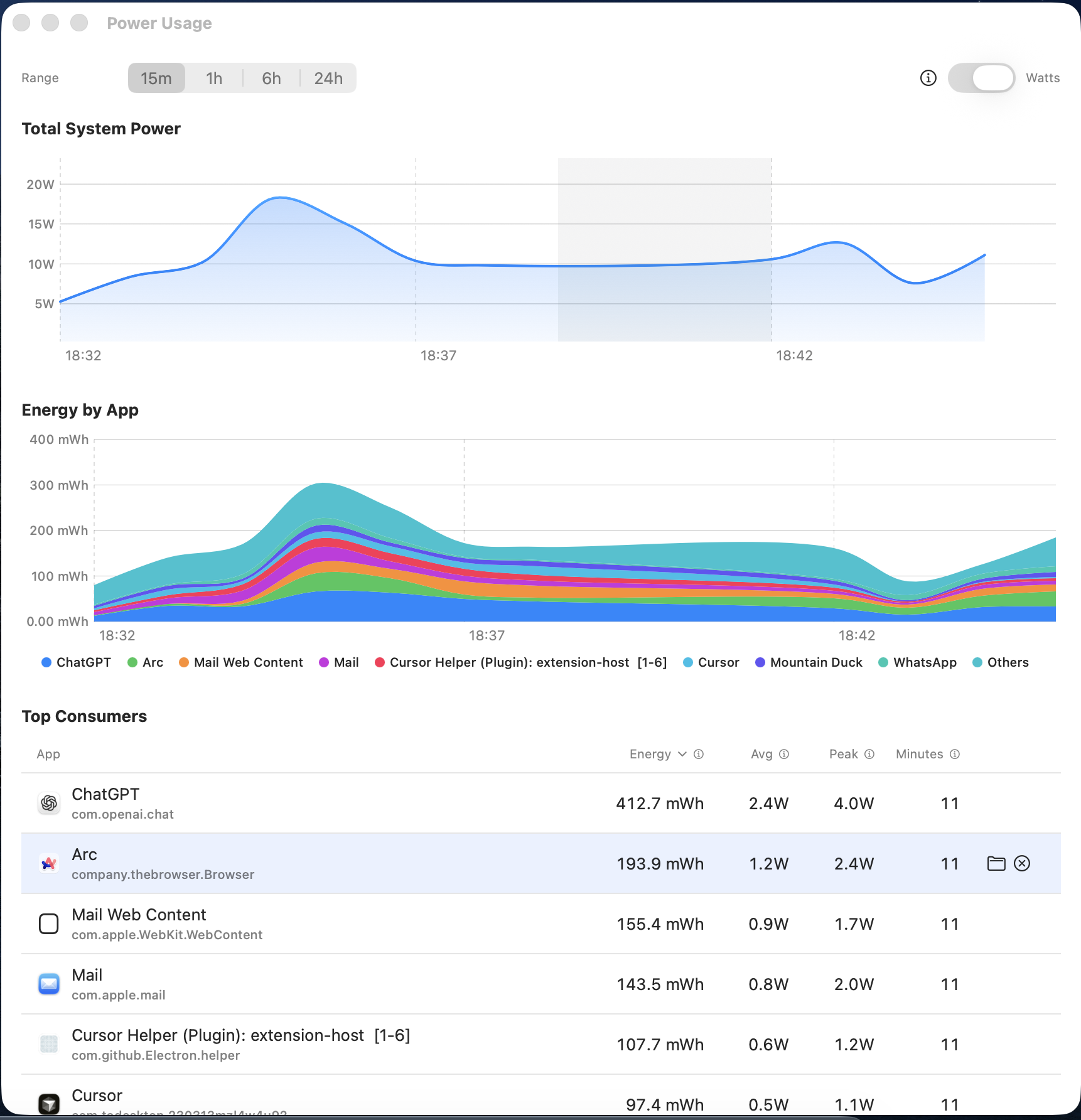
PowerWatt combines battery sensors (when available) with Activity Monitor-style attribution to help you understand both overall power draw and which apps are driving it.
When your Mac exposes battery sensor data, PowerWatt shows total system power in watts.
Energy is power accumulated over time, shown per app and for the selected range.
PowerWatt estimates per-app impact from CPU time, disk I/O, and wakeups.
PowerWatt keeps the interface calm while still surfacing the controls you need most often.
Shows IN/OUT watts from battery sensors when available (and explains when total watts can’t be read).
See which apps consume the most energy with Activity Monitor-style attribution and 24-hour history.
Pick a net view (IN−OUT) or separate IN and OUT labels for detailed profiling.
Total power over time, stacked per-app energy charts, and a top consumers table with sortable columns and in-app unit explanations.
When total system watts are unavailable (often while charging), PowerWatt automatically uses Relative mode so rankings and charts still work.
Adjust refresh rate (1–60 s) and smoothing windows (0–30 s) to reduce flicker.
Choose icon + watts, watts only, or prefix + watts—optionally color-coded for direction.
Keep PowerWatt pinned in your menu bar and let Sparkle manage future updates.
No telemetry is sent unless you explicitly opt in. All usage data stays on your Mac.
PowerWatt is free to download and open source. If it helps, you can support development with a coffee.
PowerWatt.dmg./Applications, launch the app, and open preferences from the menu bar.PowerWatt.app and choose Open.
Leave it in /Applications for smooth updates and automatic “Open at Login” behavior.
Anonymous usage stats stay off by default. When you first launch PowerWatt you can opt in (or not), and the toggle remains available later in Preferences.
Read the full privacy note for the exact data sent when telemetry is enabled.
Stay in the loop as we ship refinements to the menu bar experience.
Highlights in this release:
Need an older version? Browse the full release history on GitHub.
Battery voltage (mV) × current (mA) ÷ 1,000,000 gives watts. PowerWatt reads those values directly from macOS.
On some Macs, macOS does not expose reliable total power while plugged in/charging for long stretches. In those cases PowerWatt shows Relative metrics instead, so you still get useful rankings and charts.
Short spikes are normal as macOS shifts CPU/GPU load. Lower the refresh interval or enable smoothing to average them out.
PowerWatt uses Activity Monitor-style attribution based on CPU time, disk I/O, and system wakeups. The total system power is proportionally allocated to apps based on their relative activity.
PowerWatt relies on battery stats for total watts, so it’s intended for Macs with a battery. The per-app tracking works on any Mac but may show relative scores instead of estimated watts.
All usage data is stored locally in SQLite under ~/Library/Application Support/PowerWatt. No per-app data is ever transmitted.
Open an issue on GitHub with your macOS version and what you expected to see.